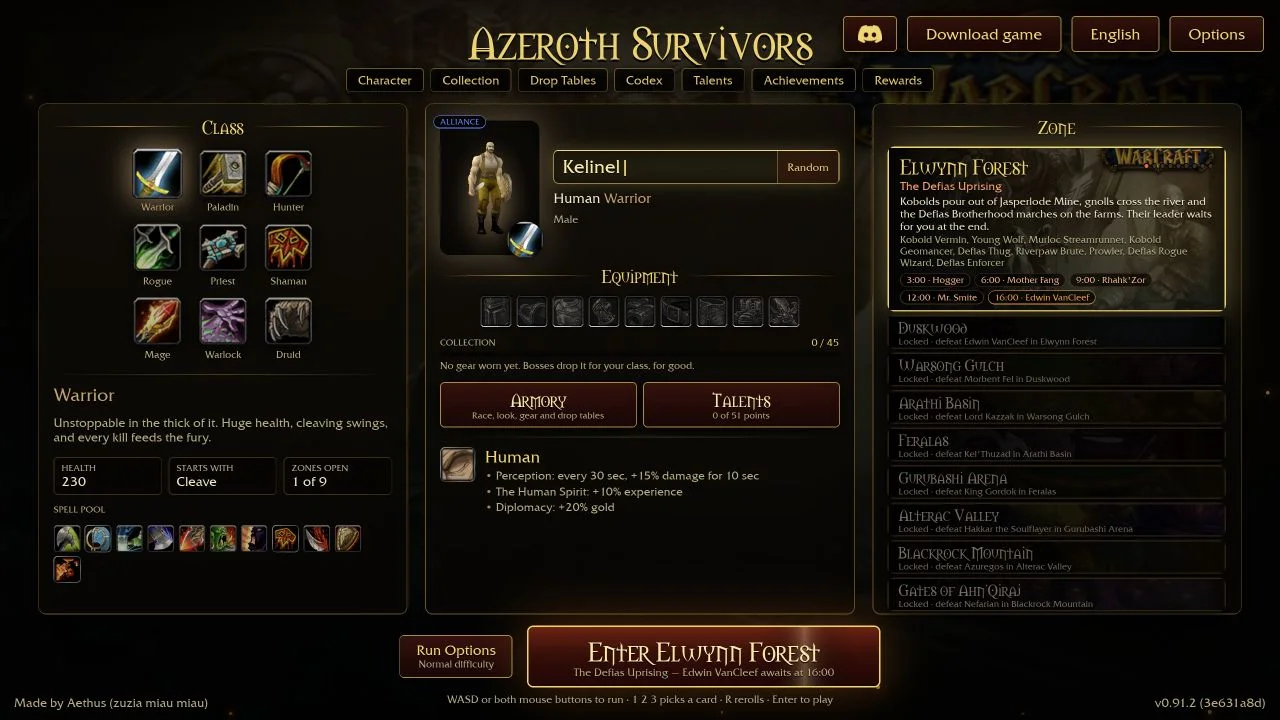
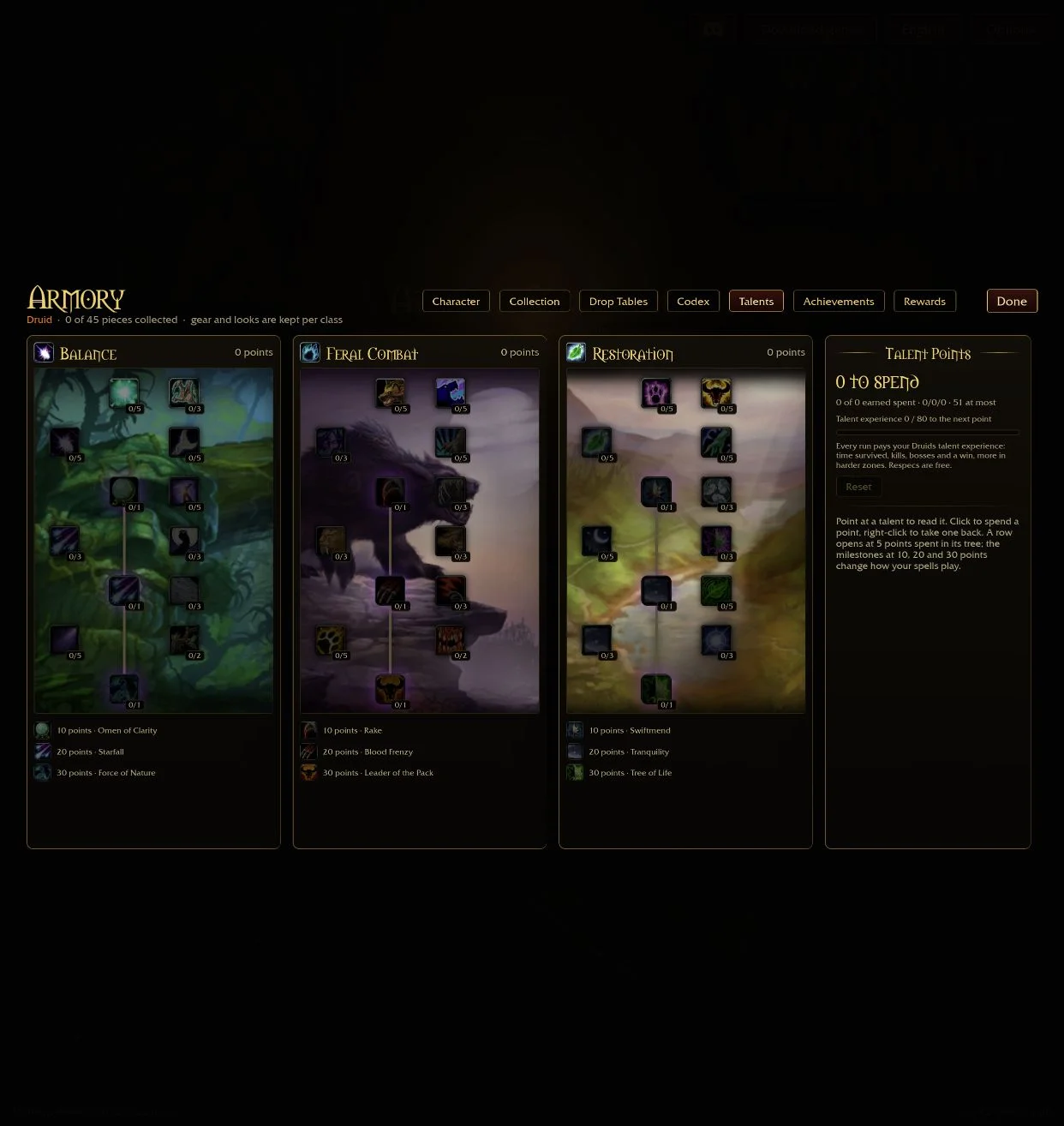
ASBuilder carries a build from planning into a run: choose spells and jewelry for four stages, share the plan, then follow the tracker's next picks. Cadoky's 27 October introduction links the website now at asbuilds.app. Codes carry the plan between the addon and website, including the stages a finished-build screenshot leaves out.
Start a saved plan in game or on the website
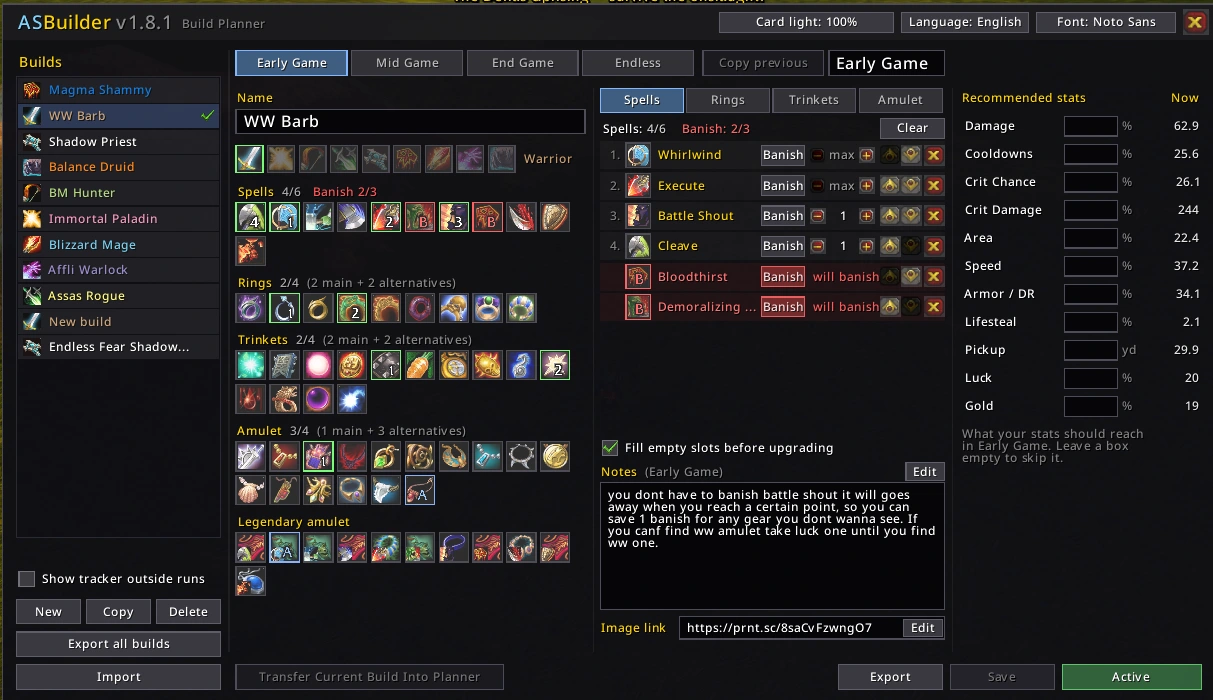
Install the release ZIP with the ASBuilder folder under benilla-config/AddOns/, then restart the game. Browser players install the addon ZIP through Options > AddOns. Open /asb, or use the tracker's book button. Select New, choose the character's class and name the build. Changes stay in a draft until Save; selecting another build discards unsaved edits. Use this build selects the saved version for tracking.
The website has New build, a class selector, Build and Talents tabs, plus Public builds. Cadoky's announcement describes 27 talent trees and a gallery with class/spec filters, stars and copying. A public share needs a name. Accounts use a Name#1234 identifier and recovery code, without email or password. Save the recovery code. Use asbuilds.app even when an older screenshot shows the former Vercel address.
Give each stage a reachable target
Early Game, Mid Game, End Game and Endless each hold their own picks, ranks and banishes. Select a stage and use Copy previous to carry its setup forward, then raise targets or adjust the next steps. Tabs can be renamed. Keep already-taken spells, rings and trinkets in later stages, and keep earlier banishes consistent. A red exclamation mark and warning strip identify contradictions; Fix repairs the stage consistency.
A useful plan states when to stop upgrading an early pick and what to pursue next. For example, set a spell's target rank, then raise that target in the following stage. This describes your intended order; the available cards still determine which choices you can make during a run.
Order spells and allow jewelry alternatives
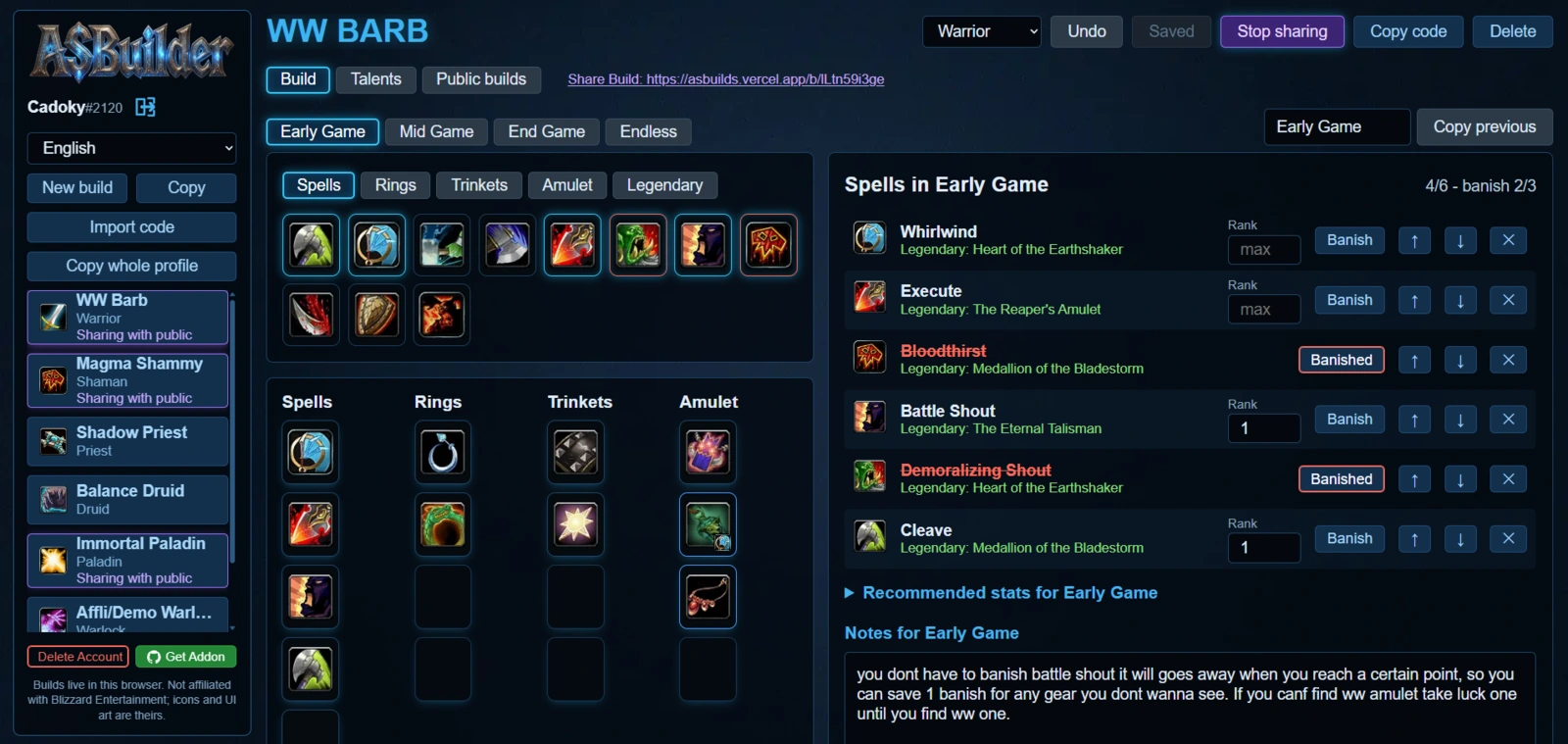
In Spells, reorder entries with the arrows and set a target rank; max means keep upgrading. Current v1.12.0 counts a banished entry toward the planner's six-spell limit, with at most three banishes. Mark a spell with Banish or right-click its icon. An old screenshot showing separate kept and banished counts should not be used to budget the current plan.
Rings and Trinkets each accept two main picks and two alternatives. Amulet accepts one main pick and three alternatives. Mark an alternative with Alt; wearing one fills that kind of slot for tracking. Give jewelry the value you want, such as 30 for 30% cooldown reduction, or leave the field empty to keep upgrading. The tracker reads the worn piece's tooltip value and compares it with the target. A target is a requested value, not a promise about a future card.
Use the build-wide note for choice explanations and keep talent allocations as a reference. The addon cannot read spent talents directly. Its Image link field can hold a talent screenshot URL: click the box, press Ctrl+C and paste into a browser. Spend talent points yourself between runs.
Copy one build with ASB2
- Save the plan and select it in
/asb. Click Export. - The export dialog selects the code. Click inside the box if needed, then press Ctrl+C. The addon does not put it on the clipboard by itself.
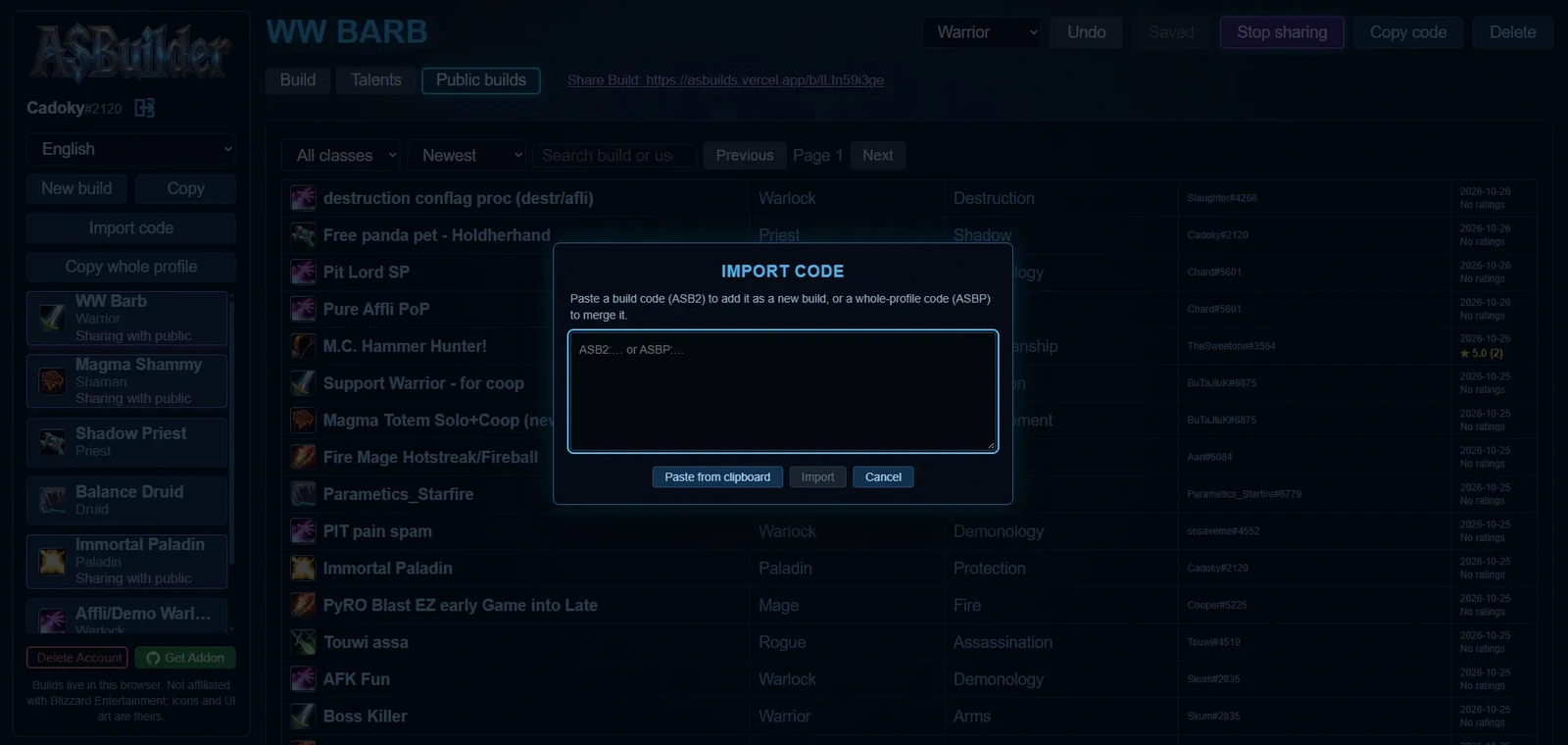
- On the website, choose Import code, paste the complete
ASB2:string and press Import. The website adds that single build. - To return from the website, use Copy code for the chosen build. In the addon, choose Import, click the text box, press Ctrl+V and then Import.
- Choose the imported saved plan with Use this build or the tracker's build menu. Opening the planner alone does not select a plan for the next run.
Choose between a single build and a whole profile
Export all builds in the addon and Copy whole profile on the website produce an ASBP: code. This includes build identities, save revisions and deletion markers. In the game importer, an incoming higher revision updates a matching build; an older or equal revision leaves the existing one. A deletion marker can remove the matching build when its revision is at least as recent. The import reports new, updated, deleted and unchanged counts.
Keep a separate exported copy before moving a whole profile. Use ASB2 for sharing one recommendation with a friend. A whole-profile transfer can be larger than 20 KB; the author's instructions suggest the website's file-transfer option if the text box refuses it. Profile transfer also preserves website talent text, without applying those talents to your character.
Read the tracker, then choose cards
The header chooses a saved build for the current class. A fresh game entry starts with none selected; /reload keeps the selection. The stage advances after every target is reached, skips empty stages and changes to Endless when the run does. Click the stage to change it manually.
Untaken planned spells are faded; a green dot marks a learned planned spell, and a purple dot marks an off-plan spell. A missing planned spell moves below a line when all six actual spell slots are full. Jewelry targets appear yellow until reached and green afterward. The game does not report banishes to addons: click a banish row after carrying it out to mark it done.
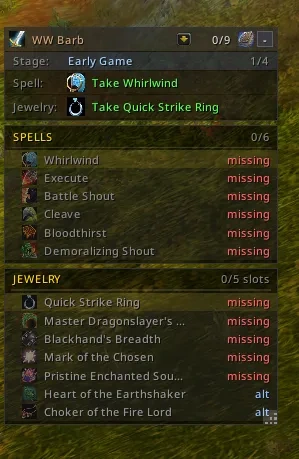
Card-screen panels show the plan above level-up, lair and cache choices; remaining priorities and banishes have glow cues. Drag the panels and resize from their lower-right handle. Planner switches show or hide them. Use /asb tracker for tracker visibility, /asb lock to lock it, /asb scale 0.9 for size and /asb reset to restore positions.
Read older plans after the 3 November update
v1.12.0 stores one note per build, up to 2,000 characters. When an old code contains several stage notes, only the first nonempty one is retained, so keep a copy of older explanations before import. Filling empty slots before upgrades is now always enabled, and new installations no longer include outdated example builds. Existing personal builds remain. Game updates can change spell and jewelry data; update the addon before exchanging affected plans. The ASBuilder addon page and class build guides provide related references.
Sources & scope
Cadoky’s October author posts and screenshots, current ASBuilder planner/tracker code and the 3 November v1.12.0 release.
- Cadoky: ASBuilder announcement and original screenshots, 27 October 2026
- ASBuilds website
- Cadoky: ASBuilder README
- ASBuilder detailed instructions
- ASBuilder planner: copy and paste dialogs
- ASBuilder tracker: card target glows
- ASBuilder v1.12.0, 3 November 2026
- ASBuilder profile revision and deletion handling
- Download ASBuilder release ZIP