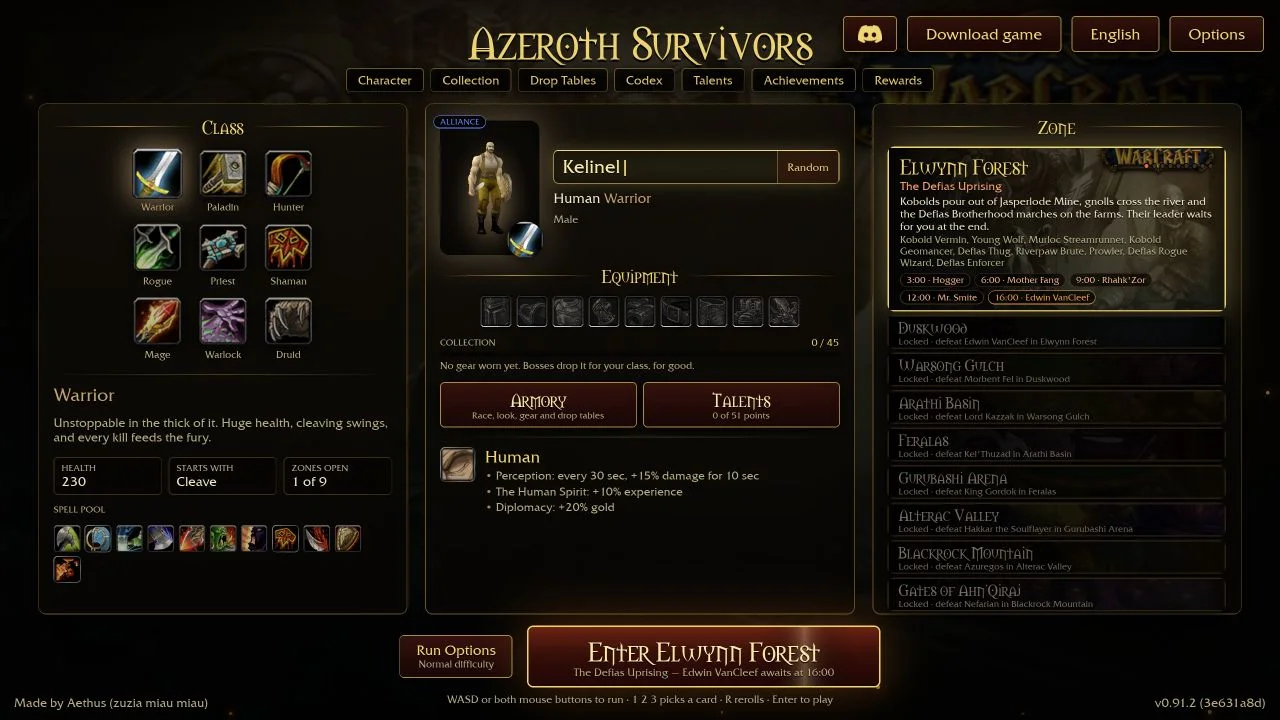
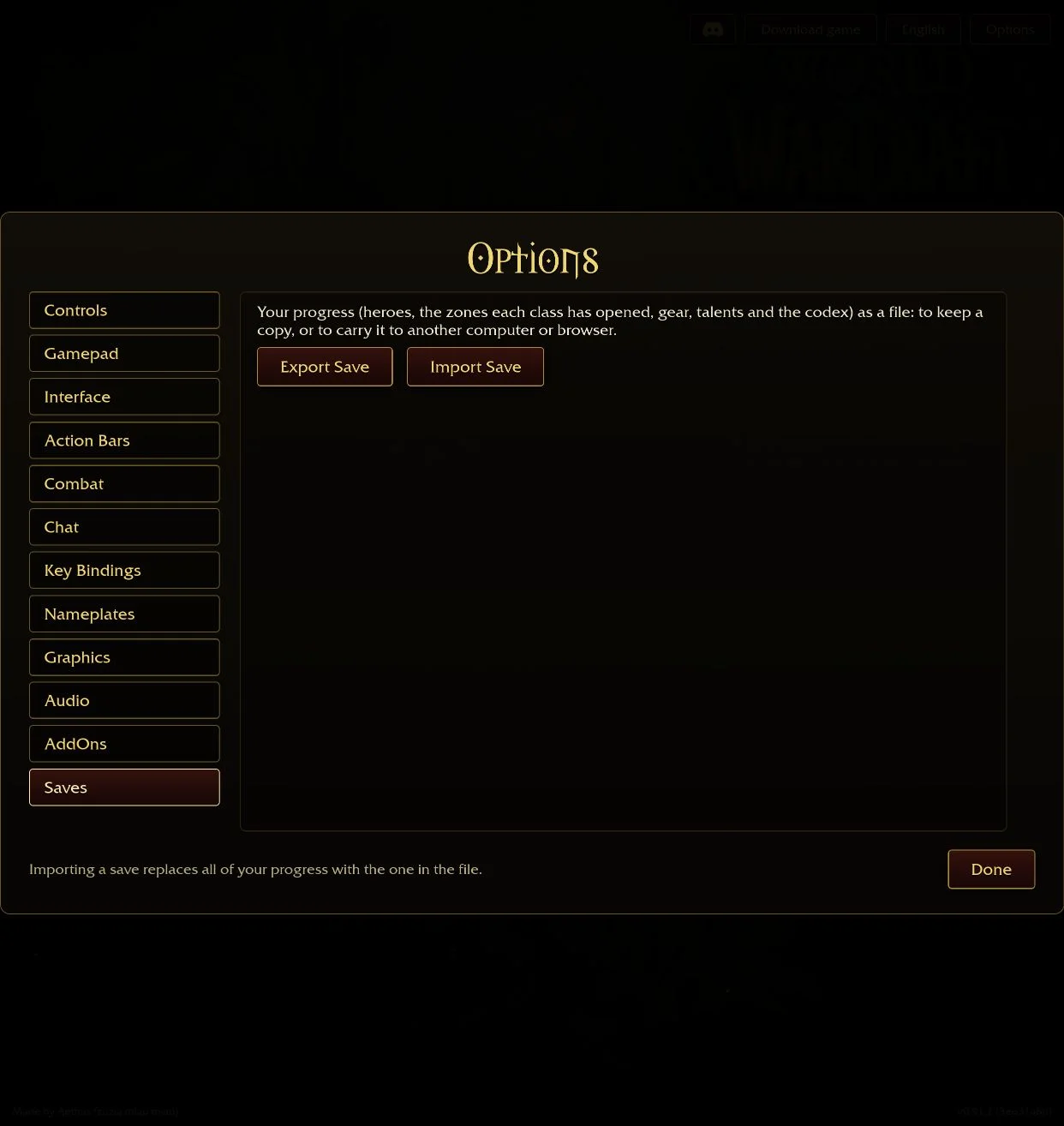
Start with the information you need during a run. CreedUI puts boss and rescue signals around a configurable HUD. SurvivorUI Classic keeps the game's visual style and groups run information under the minimap. KeijinUI combines a modular layout with run history and a jewelry diary. SurvivorsDragonUi adds named layout profiles and explicitly supports installing its ZIP in the browser.
Match the addon to your routine
| Your task | Relevant addon | What to use |
|---|---|---|
| Install in the browser | SurvivorsDragonUi | Options, AddOns, install a .zip. Keijin's author explicitly excludes browser and Mac. |
| Find a downed teammate | CreedUI; SurvivorsDragonUi | Creed has an alert, location/distance marker and offscreen arrow. Dragon's fallen-ally guide is enabled in Map & navigation. |
| Review earlier runs | KeijinUI | /kui runs: zone, class and race history, wins and survival records. |
| Keep the game's appearance | SurvivorUI Classic | Movable native-style frames, numerical health and run/build/jewelry/meter panels. |
| Save alternate layouts | SurvivorsDragonUi | Profiles in /sdui, then Confirm to keep the chosen setup. |
Install the package in the game you actually start
For desktop play, open Options, AddOns, Open AddOns Folder to locate the running game's directory. Extract the release package so the named addon folder directly contains its .toc file. For example, KeijinUI/KeijinUI.toc is correct; an extra KeijinUI/KeijinUI/ folder is not. Keep the project folder name. Enable the addon in the game, and follow its restart instructions.
For browser play with SurvivorsDragonUi, download SurvivorsDragonUi.zip, open Options, AddOns, install a .zip, and select that ZIP without extracting it. Enable it and enter a run. The Windows updater is a separate component; the browser route uses the addon ZIP.
CreedUI: put boss and rescue signals where you can see them
CreedUI combines boss countdowns, boss and guardian skull markers, player/target/party frames and a resizable meter. Its co-op signals include a warning and sound when a friend falls, a marked revival location, distance and an offscreen direction arrow. Revival progress is shown too. The 1.14.0 update makes downed markers more opaque and changes the bottom bar and party bars.
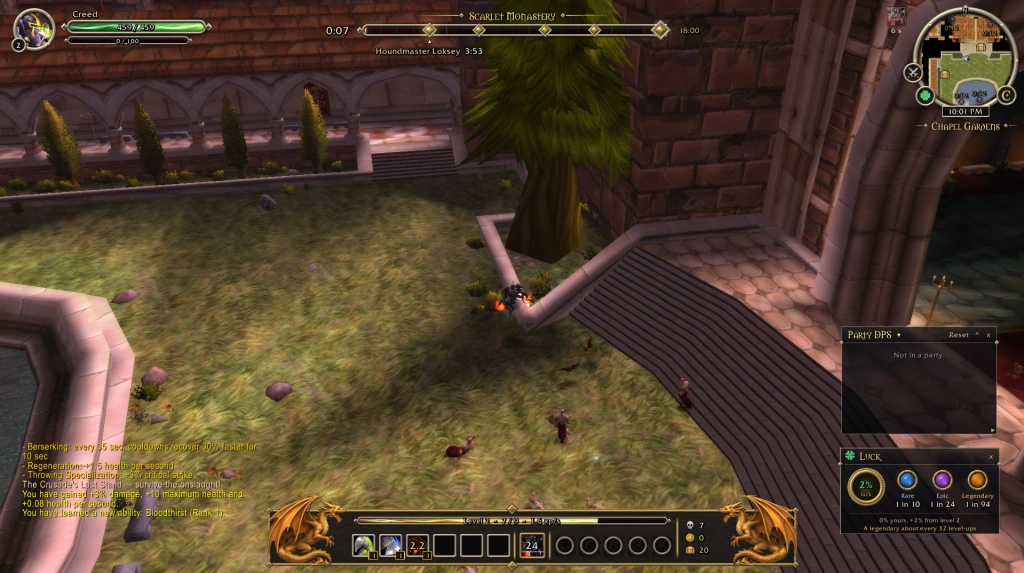
- Download
CreedUi-1.14.0.zipfrom the link in the release description. Keep the folder namedCreedUI, withCreedUI.tocdirectly inside. - Open
/creed, or click C on the minimap rim. Use the options to turn individual parts on or off and change their sizes. - Type
/creed move, drag the frames, then type/creed lock./creed resetrestores their positions. - Use the crossed-swords minimap button to show or hide the meter; the clover opens the luck window. Choose Chinese or another language in options, or use
/creed language autoto follow the game language.
The meter has Damage Done, Healing Done, Boss Damage, Party DPS and Damage Taken views. The glowing stored-level button depends on the game's Store Level-Ups option being enabled. The run summary groups time, level, kills, bosses, damage dealt/taken, gold and caches after the run.
SurvivorUI Classic: rearrange the familiar frames
Classic is a separate Survivor UI branch that runs on its own. Its right-hand column groups the run tracker, build list, jewelry and damage meter. The tracker shows the boss schedule, guardian/lair state and gold against the next cache price. Choose whether the target frame shows a health value, a percentage, both or neither. Boss bars can be clicked to target their enemies.
- For manual installation, use
SurvivorUIClassic-0.2.10.zip. Extract theSurvivorUIClassicfolder into the game's addon directory and restart. - Left-click the minimap gear, or type
/suic, for options. Each piece has its own size control; General also has a scale slider for the whole interface. - Right-click the gear, or use
/suic move, for Move frames. Drag a green box to reposition its piece. Boxes snap to the grid, screen and other frames. Right-click a box to put that piece back;/suic resetrestores all frames. - Move a panel away from the right-hand column when you want it to stand independently. The meter displays the rows that fit above the screen's bottom edge.
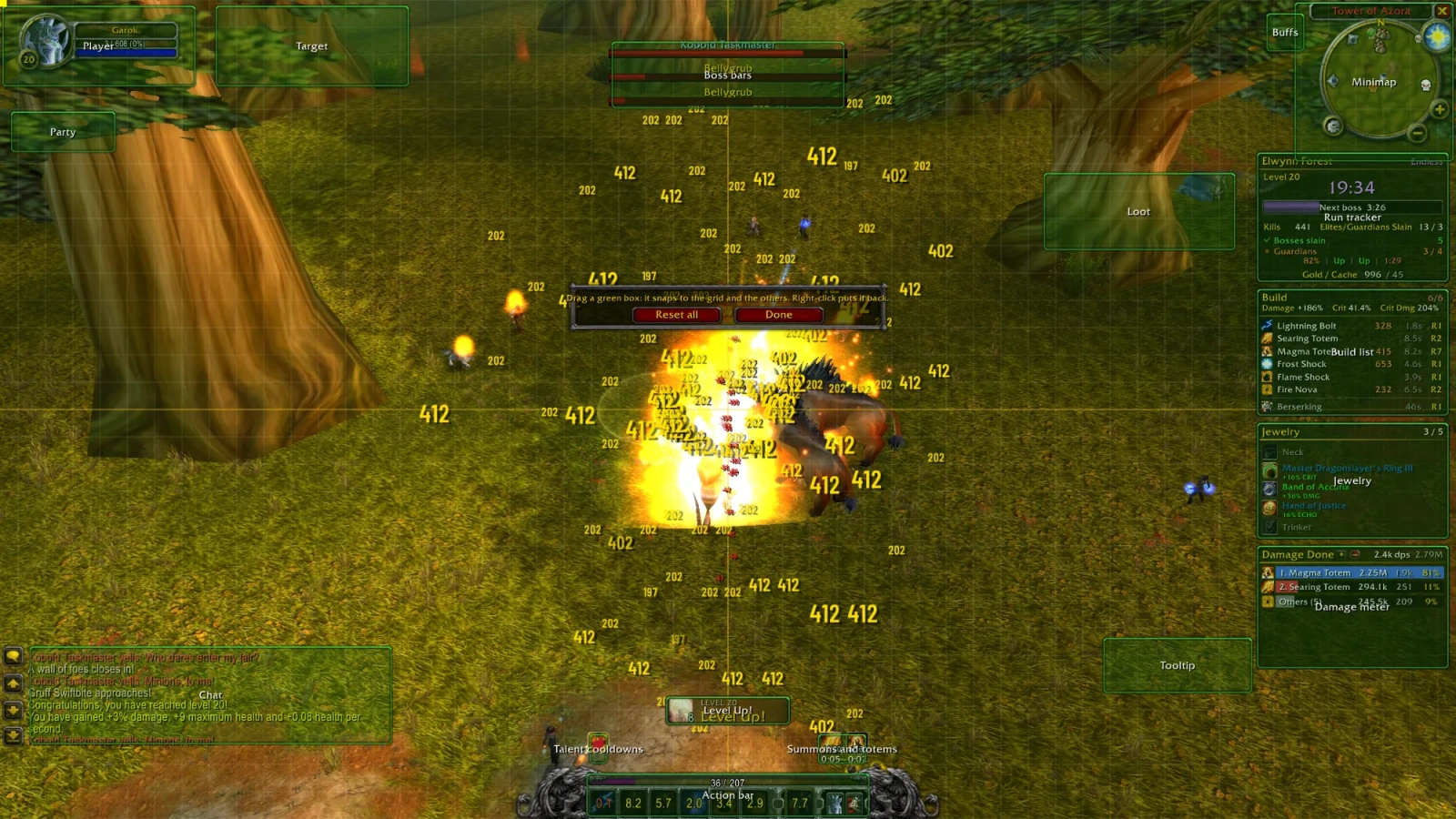
If you install both Classic and Survivor UI, a choice panel selects one because they change the same frames. Change UI sits below the options tabs; /suic also opens the choice while Survivor UI is active. Choose, then close and reopen the game. Survivor UI 3.0.44 or newer steps aside automatically when Classic is chosen.
KeijinUI: arrange the modules and keep run history
Keijin's post edited on 2 November explicitly excludes Mac and browser. Its layout combines boss/lair guidance, character statistics, meters, a searchable jewelry diary and run history. /kui runs groups runs by zone, class and race, with wins, the last result, fastest win and longest survival. History starts accumulating when the addon is installed.
- Use the packaged
KeijinUI-4.7.1.zip, not Source code. Close the game for an update, remove the oldKeijinUIfolder, and put the new one in its place. Settings are stored separately undersaved/. - Check
AddOns/KeijinUI/KeijinUI.toc, then start the same game installation. Its chat startup message shows the loaded addon version. - Open
/kui. Search settings by name, or enter/kui editto show labeled frames. Drag with the left mouse button; use the mouse wheel to resize. Hold Shift while releasing to skip snapping. - Positions, sizes and options save immediately.
/kui gridtoggles the grid/snapping;/kui resetresets positions and sizes./kui mapswitches between the small and fullscreen map.
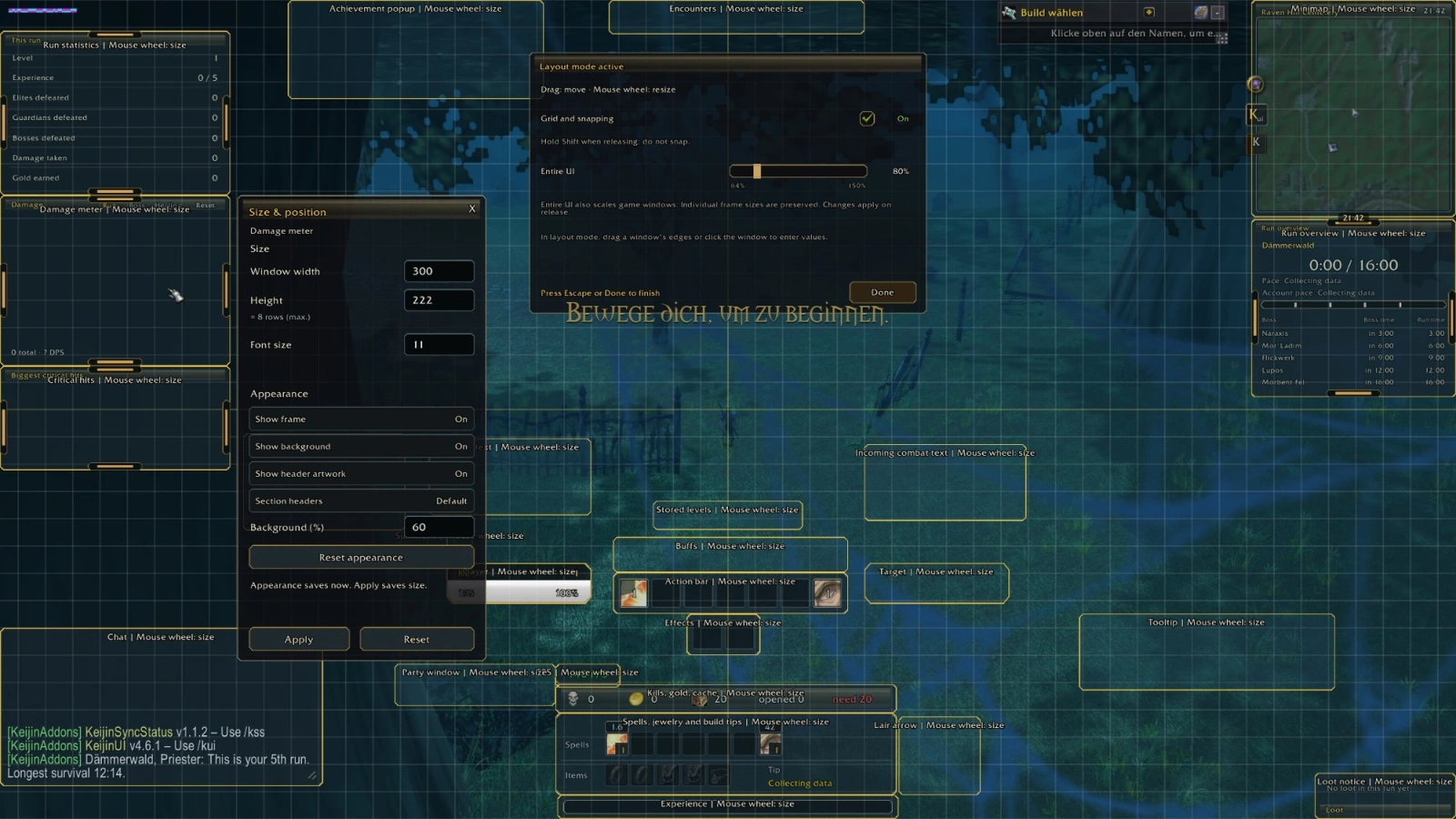
Under Modules, you can switch off whole features while retaining their options and positions. Keijin specifically asks users to disable SurvivorsDragonUi, SurvivorUI, KeijinBuildBar, KeijinRunCounters and KeijinAchievements because their functions overlap, then restart fully. For co-op it also has party health, revive progress and a Party meter tab.
SurvivorsDragonUi: save layouts and enable navigation
Dragon groups player/target frames, an action bar with equipped jewelry, a run timer, boss bars and a guardian tracker. In 3.2.87, browser and desktop installation use the same SurvivorsDragonUi.zip package. Open /sdui, or click the gold glyph beside the minimap, to edit the HUD.
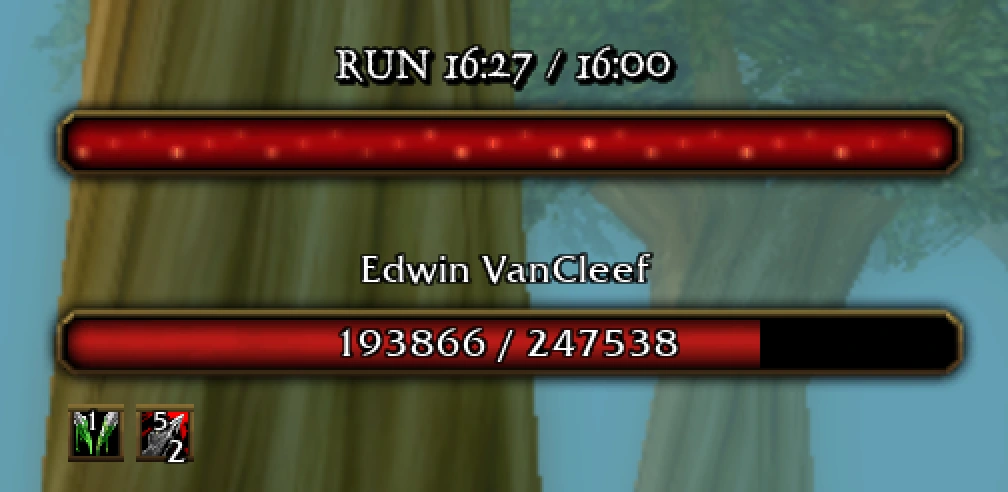
- Drag a frame to move it or a corner to resize it. Hold Shift while dragging to align with frames or the grid. Layout has exact position, size and Hide frame controls.
- To move frames with fewer controls on screen, use
/sdui lock. Select a blue frame, drag or nudge with arrow keys; Shift moves ten units. Use Save and close when finished. - In the full editor, Confirm keeps changes; Cancel, Escape or clicking the minimap glyph again discards them. Leaving the run or reloading also discards unsaved edits.
- In Profiles, Save profile and close or Overwrite and close saves the named profile and current setup together. Loading or deleting a profile remains a preview until Confirm.
/sdui resetrestores the default layout/display/timer choices while retaining saved profiles and the combat-text mode.
Cache, guardian and fallen-ally direction guides start off. Enable the ones you need in Map & navigation; world icons have separate switches. Guide to next respawn can follow a lair while it refills. The guardian tracker's plus/minus button switches between living guardians and all lairs.
The damage meter also starts off: enable it under Damage meter and Confirm. Click its heading to cycle Damage Done, Healing Done, Boss Damage and Party Damage. Performance Mode uses static portraits/HUD effects, removes cooldown numbers and stops chat/banner fading; combat text keeps its motion. Turn it off to restore the individual choices.
Keep a release ZIP for the UI you choose. Its package and loaded version determine which controls you see. The addon directory also groups smaller tools if you only need a meter, map helper or build tracker alongside your chosen interface.
Sources & scope
Maintainers' Discord posts and GitHub READMEs and release notes, checked 3 November 2026.
- CreedUI README
- CreedUI 1.14.0 release
- Creed introduction, 3 November
- Creed 1.11.0 follow-up
- CreedUI 1.14.0 update and author screenshot
- SurvivorUI Classic README
- SurvivorUI Classic 0.2.10
- SurvivorUI Classic author announcement
- KeijinUI README
- KeijinUI 4.7.1 release
- KeijinUI 4.7.1 detailed guide
- Keijin author platform statement, edited 2 November
- SurvivorsDragonUi README
- SurvivorsDragonUi 3.2.87
- morderous/survivorui-classic author screenshot: ui-classic-move
- KeijinDE/KeijinUI_modern-as-ui author screenshot: ui-keijin-layout
- migwynkriid13/SurvivorsDragonUi author screenshot: ui-dragon-bars